Workspace panels and layouts
A panel is one scrip, one function and one link group. This page covers how to arrange them, link them and keep the arrangement.
The panel and its head
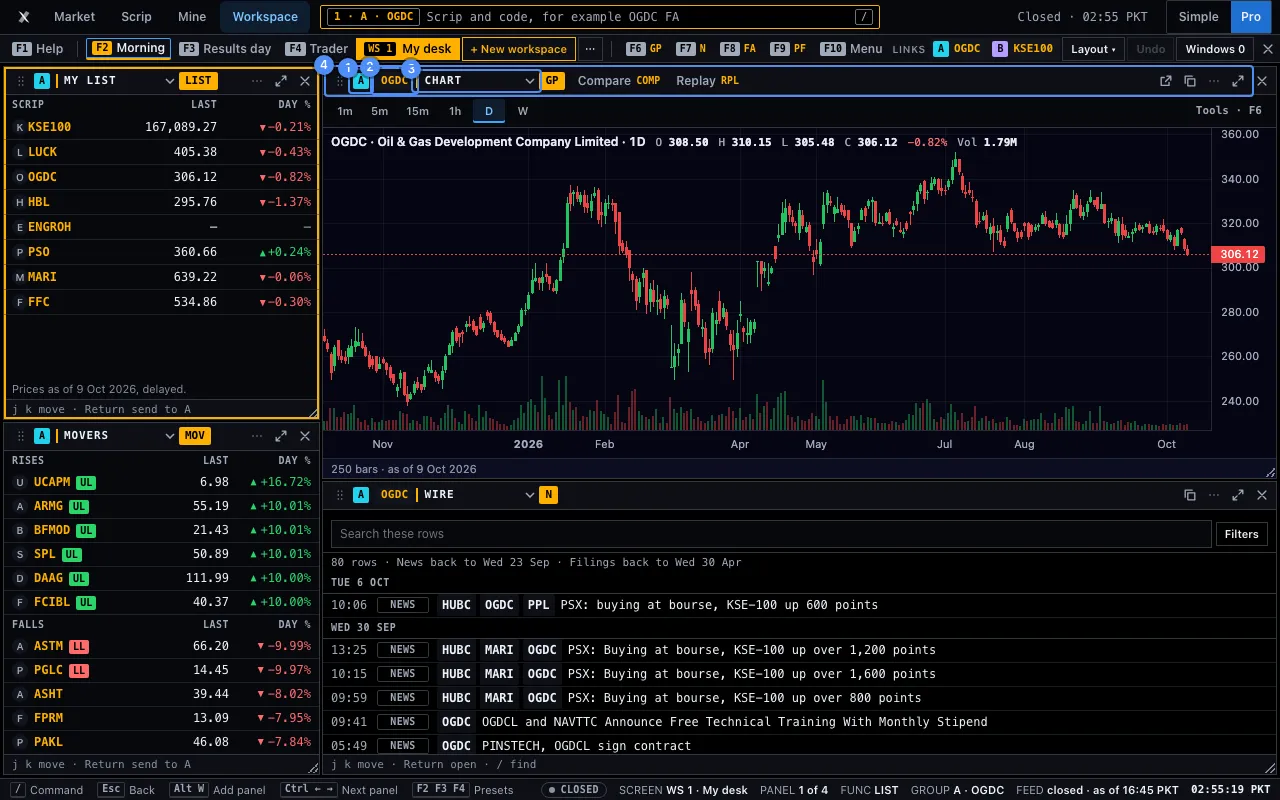
Every panel has a head over its body. From the left it shows the link badge 1, the scrip 2, the function’s name 3, its amber code, any tabs, and these buttons.
- Open full chart (a chart panel only) opens the chart page with the same scrip.
- Open in a new window opens the panel in a window of its own.
- More for this panel (⋯) holds the rest. See below.
- Maximise fills the Workspace with this panel. Restore, or Esc, returns it.
- Close panel removes it. The last panel has no close button.
In the Terminal look, Add a tab, Split this panel (Alt+W does the same) and Collapse to head are in the ⋯ menu. With the look off they are buttons of the head. Collapse to head folds the body away, and Expand returns it.
A menu of kinds in the head changes the panel’s function. A new panel opens as My list, Chart, Wire or Movers. The rows of the ⋯ menu are Move tab…, the Related functions of this one, Help for this function, Export rows as CSV, for a chart Compare and Replay, then Split this panel, Collapse to head and Close panel. The first row opens a tab.
The look is the Terminal’s. Tiles sit 4 px apart on the grid. The title is in small capitals after a 2 px amber bar. You grab a divider in a band 8 px wide, and 44 px wide on a touch screen. The workspace on screen is a solid amber block with black text. + New workspace and + Tile have amber outlines, and + Tile is solid while the library is open. A move takes 200 ms, and 0 ms if your device asks for less motion.
How many panels fit
The window decides. A window shows 1 panel under 600 px, 2 from 600, 4 from 900, 6 from 1280 and 8 from 1440. A panel is never smaller than 260 × 180 px. A panel that does not fit folds into a tab of its neighbour in the view only, and returns when you widen the window. Nothing is lost.
The desk is a grid of 12 × 12 cells and every panel is a block of whole cells. Drag a divider to resize: it snaps to a cell line, and every panel on that divider moves with it. Alt with an arrow key moves a focused divider one cell. Ctrl with an arrow key moves the focus between panels. Split this panel halves it in whole cells; a panel that is one cell wide or tall becomes a tab instead.
Tiling has six layouts: 1 panel, 2 side by side, 2 + 1, 2 × 2, 3 × 2 and 1 big + 3 small.
Move and size a tile
To move a tile, press its head or its grip and drag. The grid lines show and one dashed ghost marks where it lands, with its size, its cells and its link group in words. An empty cell takes the tile at its size, or at the largest size that fits there. The edge of another tile (a quarter of it) gives half of that tile to the tile you drag, and the hole it leaves heals: the neighbour that shares the hole’s whole edge grows into it. The middle of another tile swaps the two. Esc leaves with nothing changed.
The keys do the same. Alt+M picks the focused tile up, the arrows move it one cell, Enter drops it. Alt+Shift+↑ and its three arrow twins size the focused tile one cell a step. To size with the pointer, drag the grip in the lower corner of the tile, in whole cells. A tile you take from the library and drop on the middle of another tile joins it as a tab. Alt+Z undoes the last 10 steps of moving, sizing and adding; the steps are kept in memory only.
A tile grows into empty cells first, then pushes the edge it shares, down to the smallest size of each neighbour. A tile is never smaller than its function needs: 2 × 3 cells for a list, 3 × 3 for most panels, 4 × 4 for a chart or the statements. Two tiles never overlap and none is lost. Every change is kept on this device at once. Alt+Z undoes it, up to 10 steps, and Undo in the strip does the same. On a phone tiles are not dragged.
The tile library
Press + Tile, Ins or Ctrl+K to open the tile library. It is a panel on the right, 320 px wide, and the desk becomes 320 px narrower, so it never covers a tile. It lists the 24 tiles by place: Scrip, Market and Mine. Each row shows the tile’s code, the size it opens at and the smallest size it goes to, in cells. Under the list, the Opens as a page codes are the functions that have a page and no tile.
Search by name or by code, in English, Roman Urdu or Urdu: fa, statements and the Urdu word all find Statements. ↑ and ↓ choose a row. Enter adds that tile, or press + on its row. Space picks the row up: the arrows move the target, Enter drops it and Esc cancels. Esc closes the library.
To place a tile yourself, drag its row onto the desk. The grid lines show and one ghost marks the landing cells, with the same rules as a move: an empty cell takes the tile, the edge of a tile gives half of it, the centre joins it as a tab. A new tile joins the link group of the tile it shares its longest edge with, or group A when it touches none. A tile that sends a scrip (My list, Movers, Portfolio) takes the next group no other sender has. A desk of 8 tiles says so and adds none; a drop on the centre of a tile still adds a tab. On a phone the library is a sheet over the deck and a tap on + adds the tile.
Tabs and sibling functions
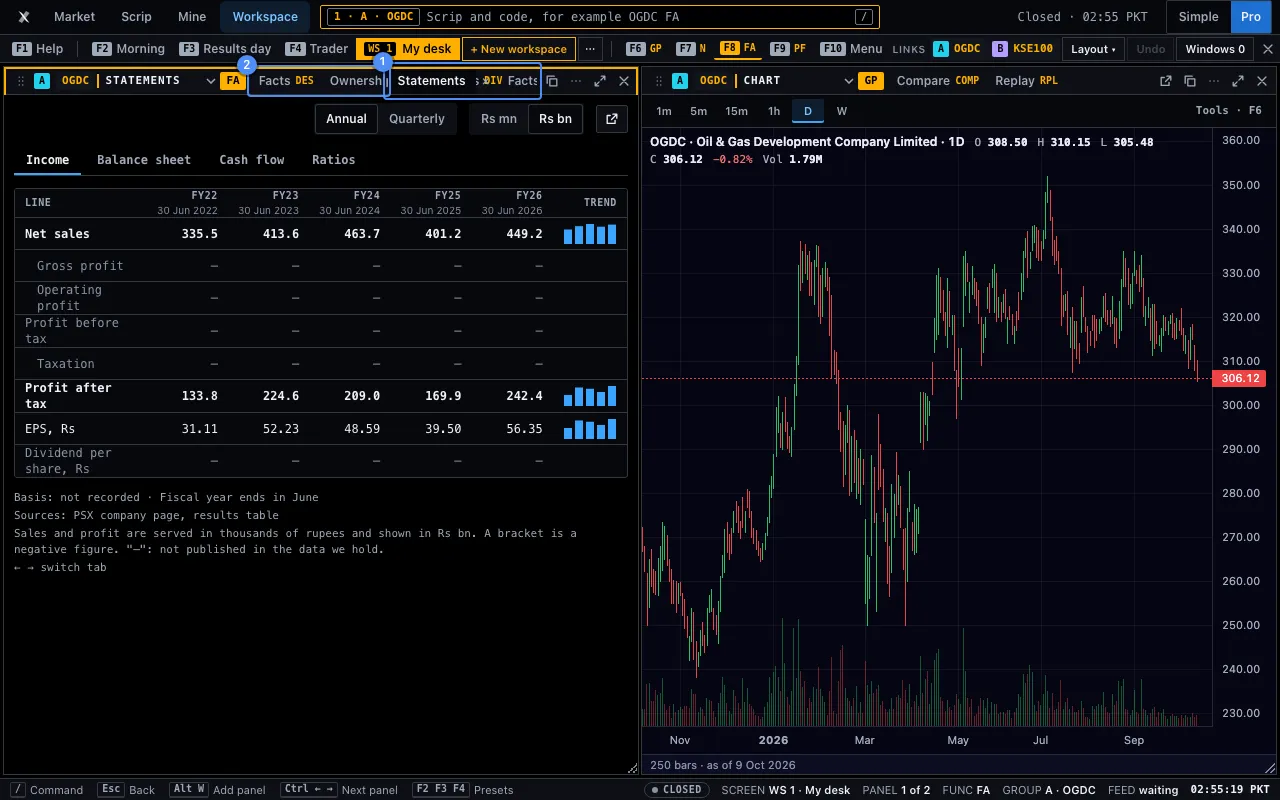
A panel holds up to 6 tabs 1. Each tab is one function and, for a panel with no link group, its own scrip. Open one with Add a tab, with Shift+Enter on the command line, or with the + on the head. Press a tab to show it. The × on a tab closes it. With more than three tabs the head shows +n; press it for the next.
After a function’s code, the Terminal look shows its sibling functions 2: the codes a reader goes to next. Statements shows Facts DES, Ownership OWN and Payouts DIV. A chart shows Compare COMP and Replay RPL. Portfolio shows Risk RISK. Movers shows Flows FLOW. Press one and the same panel changes function. The scrip stays.
The ⋯ menu’s Related functions lists the same codes in words.
Drag a tab to dock it
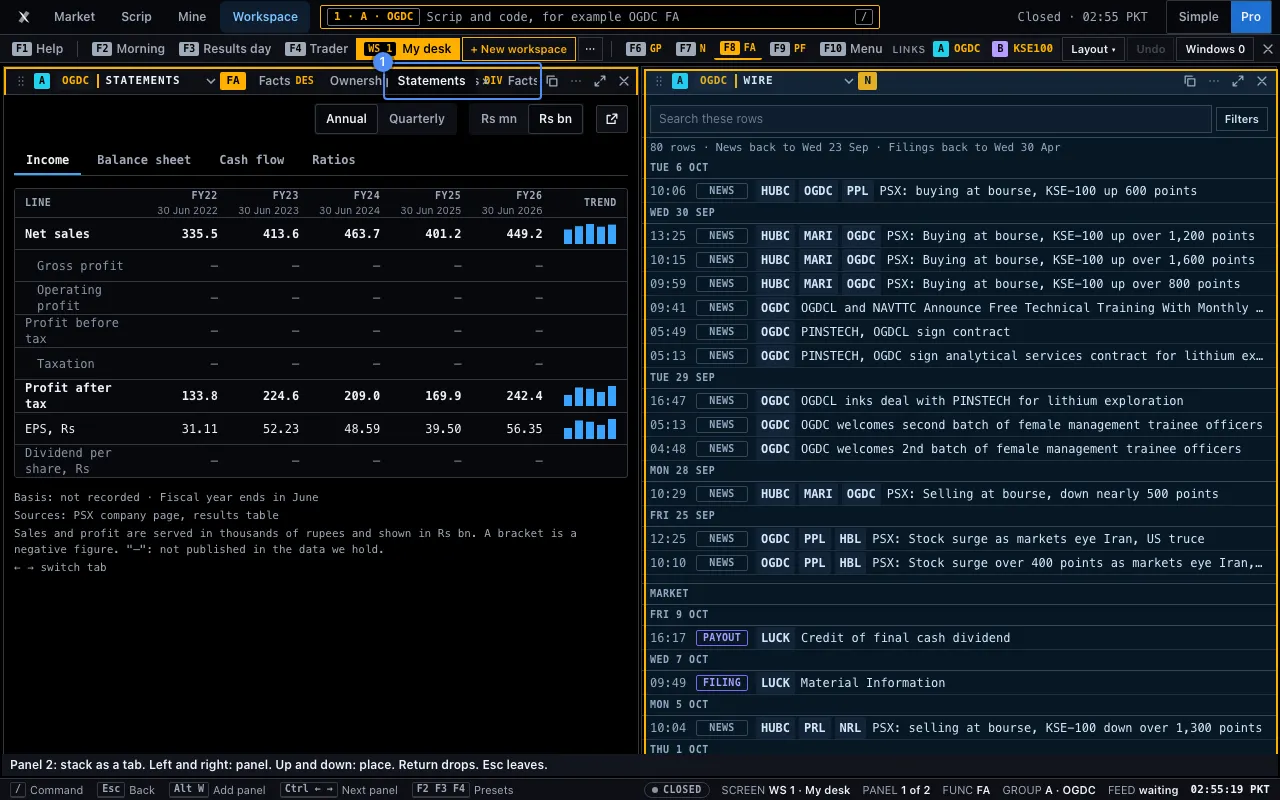
Drag a tab to another panel to move it. A guide lights the place it lands in. The centre of a panel stacks the tab as a tab. An edge band (the outer quarter) splits that panel: the left, right, top or bottom edge. A panel with one tab is dragged by its amber code chip.
Every drag has a keyboard twin. Open the panel’s ⋯ menu and choose Move tab…. Then:
- Press ← or → to choose the panel. A line at the foot names it.
- Press ↑ or ↓ to choose the place: stack as a tab, or an edge.
- Press Enter to drop. Press Esc to leave with nothing moved.
A move that does not fit says so: a panel has 6 tabs at most and the Workspace has 8 panels at most.
Link groups A, B and C
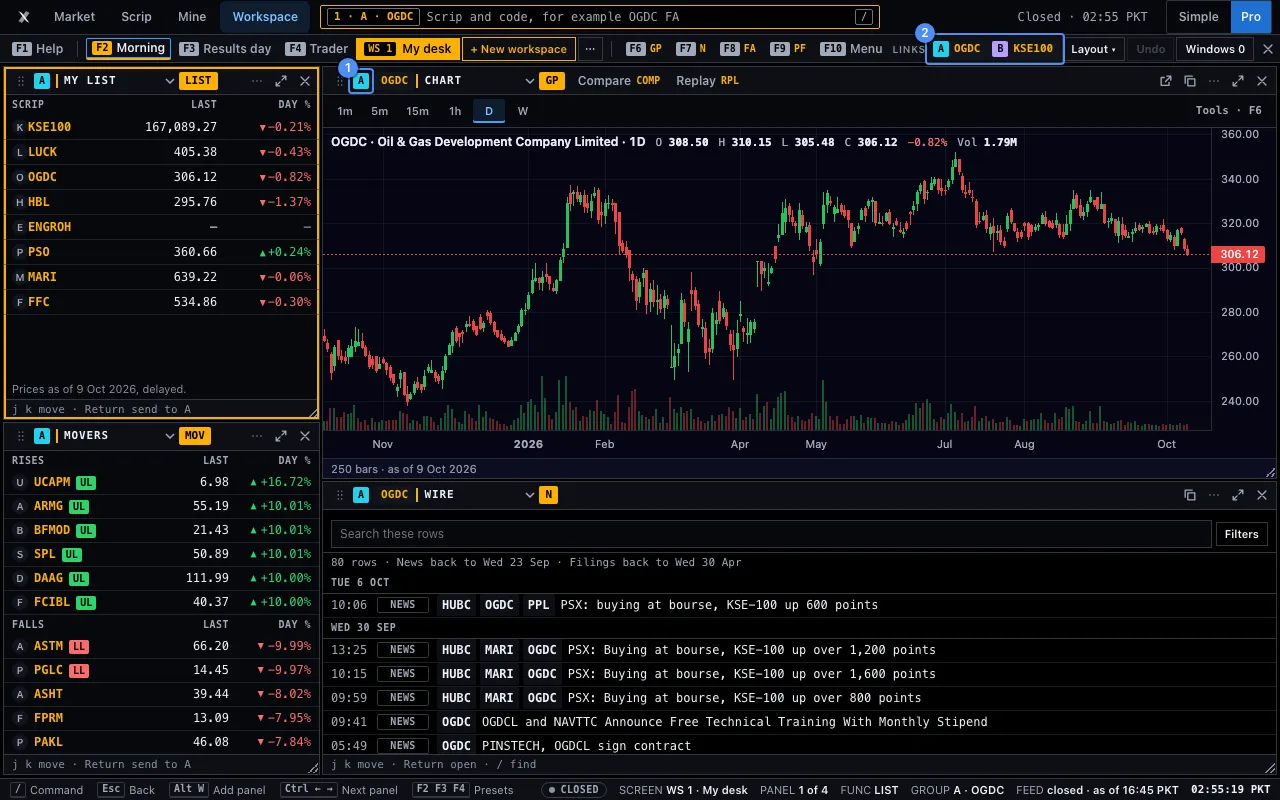
A link group 1 ties panels to one scrip. The badge on each head is its group: A (cyan), B (violet), C (pink), or – for none. Press the badge to turn through A, B, C, none.
- A scrip you press in My list, Movers or the portfolio goes to that panel’s group. Every panel of the group then shows it.
- A scrip typed on the command line goes to the focused panel’s group the same way.
- Drag a scrip row of My list, Movers or the portfolio onto a panel. A panel in a group changes the scrip of its group, and every panel of the group follows. A panel with no group takes the scrip as its own. A panel that takes no scrip says so. Esc drops nothing.
- A panel with no group keeps its own scrip.
- The Links chips 2 in the strip show each group and its scrip, such as
Group A: OGDC.
The Trader layout uses two groups: My list drives the first chart, Statements and the Wire in group A. Movers drives the second chart in group B, which starts on the KSE-100. You watch two scrips at once.
Pop-out windows join the group too. They follow its scrip, and tell the group when their own scrip changes. The link carries the group and the scrip, between tabs of this browser on this device. No holding, list or alert is in it.
Pop-out windows and the Windows count
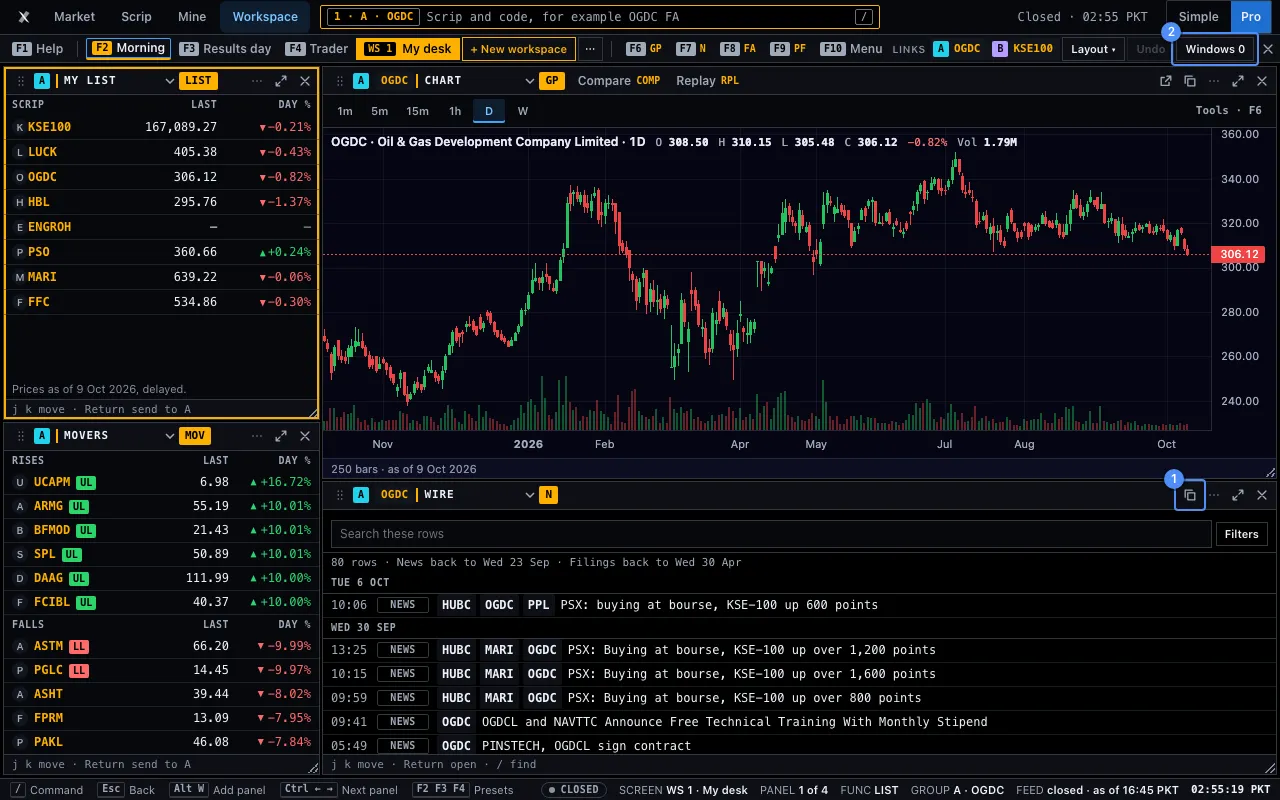
Press Open in a new window 1 on a panel head to open that panel in a browser window of its own, in the same link group. Ctrl+Enter on the command line opens what you typed the same way. Move the window to a second screen.
- The panel stays in the Workspace. A closed window loses nothing.
- The window follows its group’s scrip, and moves the group when its own scrip changes.
- A chart opens as the Pro chart. A function opens at its own address, such as
#go=OGDC+FA. The screener and Discover open at theirs. - My list and Movers have no address of their own, so they have no pop-out button.
Windows n 2 in the strip counts the windows this desk opened. Press it to bring the last one forward. If the browser blocks the window, a line asks you to allow pop-ups for this site.
Workspaces, templates and your own layouts
There are up to 12 workspaces. Each is a tab of the strip: WS 1, WS 2 and so on 1. The one on screen is solid amber. Press a tab to open its workspace. Every change is kept on this device at once, so a reload opens the same workspaces. Nothing is sent.
Press + New workspace 2, then a row: Blank or one of eleven templates. It takes 2 presses, and the new workspace opens at once with a title. Blank opens the tile library. From the keys: type WS NEW on the command line, use the arrows and press Enter. WS 3 goes to workspace 3.
| Template | Tiles |
|---|---|
| Blank | No tile. The tile library opens. |
| Morning, Results day, Trader | The three desks of F2, F3 and F4. |
| Market overview | Movers, Discover, Screener, Economy and the Wire. |
| Research desk | A chart, Statements, DCF, Facts, Analysis, Peers, Ownership and Insiders. |
| Portfolio | Portfolio, My holding, a chart, Payouts, Results and the Wire. |
| Macro and rates | Economy, Fixed income, the Wire, and a chart of the KSE-100. |
| Tape | My list, Movers, a chart at 1 minute, Time and sales and the Wire. |
| Quant | A chart, Rule test, Patterns, Seasonality and Screener. |
| Focus | A chart and Ask. |
| Dashboard | Eight tiles on one screen: the Heat map, Breadth, Calendar, Movers, Flows, the Wire, Insiders and My list. The Heat map, Movers and My list send a scrip to the Wire and Insiders. It adds no request beyond the board, the sector table, the calendar and the flows. |
Press the three dots (⋯) after the tabs to Rename, Duplicate, Reset to template, save or open a layout file, or Close the workspace. Double-press a tab to rename it. A name has up to 24 characters, and no two are the same. Reset to template puts back the tiles the workspace was made from. When you have changed nothing it does nothing. Close keeps the last workspace, and a closed one comes back with Alt+Z. Alt+Z undoes 10 steps across all of this. The 13th workspace is refused with a line that says why.
| Preset | Panels |
|---|---|
| Morning | My list over Movers; a chart over the Wire. |
| Results day | My list; a chart, Statements and the Wire. |
| Trader | 6 panels: My list, Movers, two charts, the Wire and Statements. From 1920 px wide, 8: it adds Portfolio and Results. |
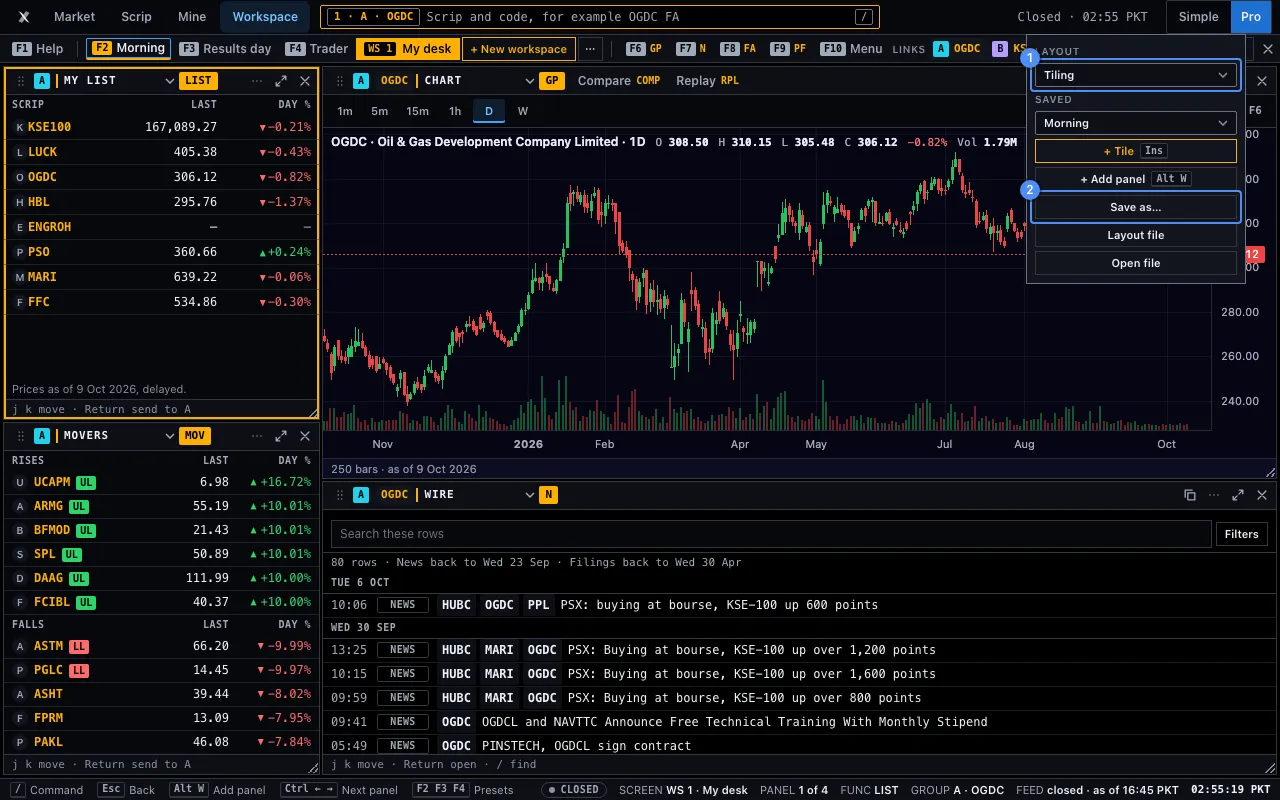
Save as… in the Layout ▾ menu keeps the desk on screen as another workspace under a title, up to the limit of 12. Morning and Results day are taken names. The Saved list opens a saved arrangement on the desk on screen. Delete layout removes the one named in it.
From 1900 px, Tiling, Saved, Add panel, Save as… and Delete layout are in the Layout ▾ menu, and + Tile and the layout file stay in the strip. Under 1900 px they are all in the menu. Nothing is removed.
The layout file
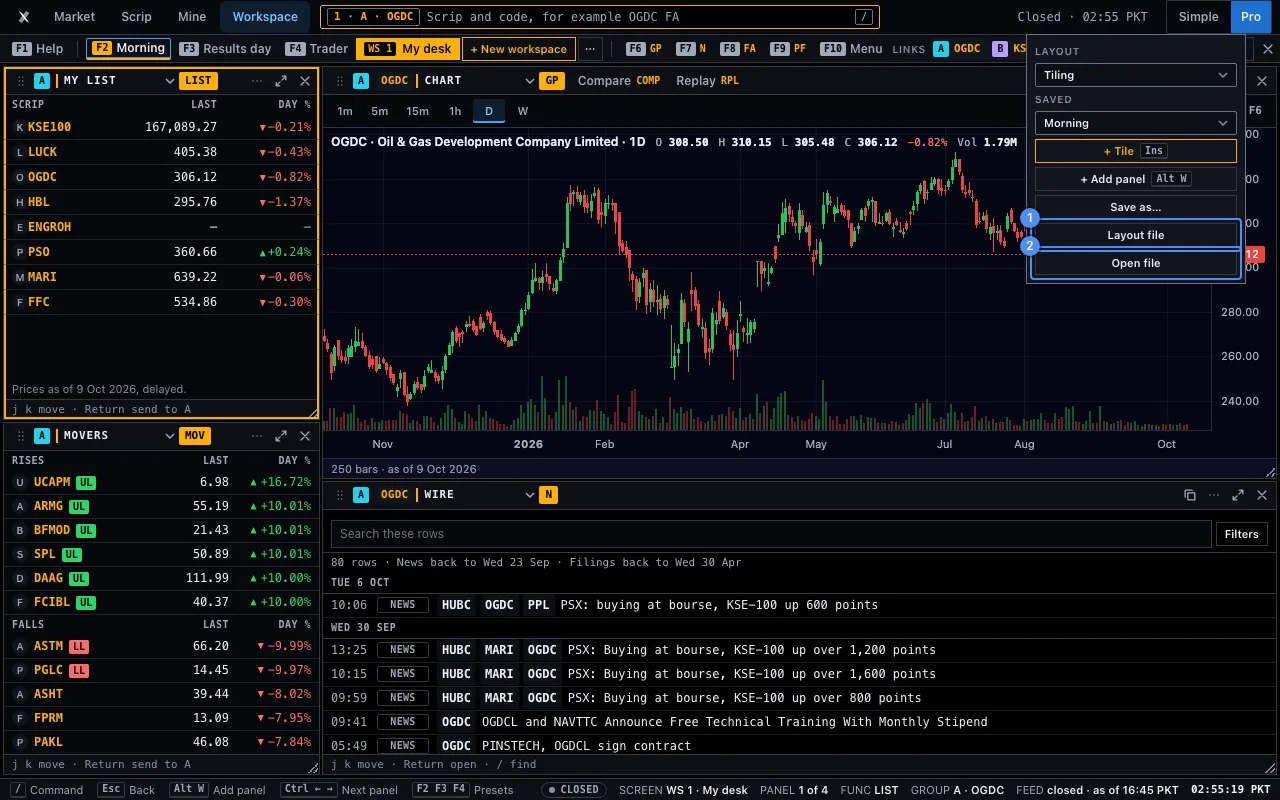
Layout file 1 saves the desk as a small file: its panels and their places. Open file 2 reads one back as a new workspace after the last, under its title. It never replaces the desk on screen. It moves a desk to another device, or keeps a copy. A layout file is the only way to share a desk: no link holds one.
- Press Layout file. The browser saves a small file. A line says Layout file saved.
- On the other device, open the Workspace and press Open file.
- Choose the file. A new workspace opens, and a line says how many panels it has.
A file that is not from this tool is refused with a line, and nothing changes. The file holds the layout only: no holding, no list, no alert, no note and no scrip of yours. A file you open is read back to the same tree.
The chart panel
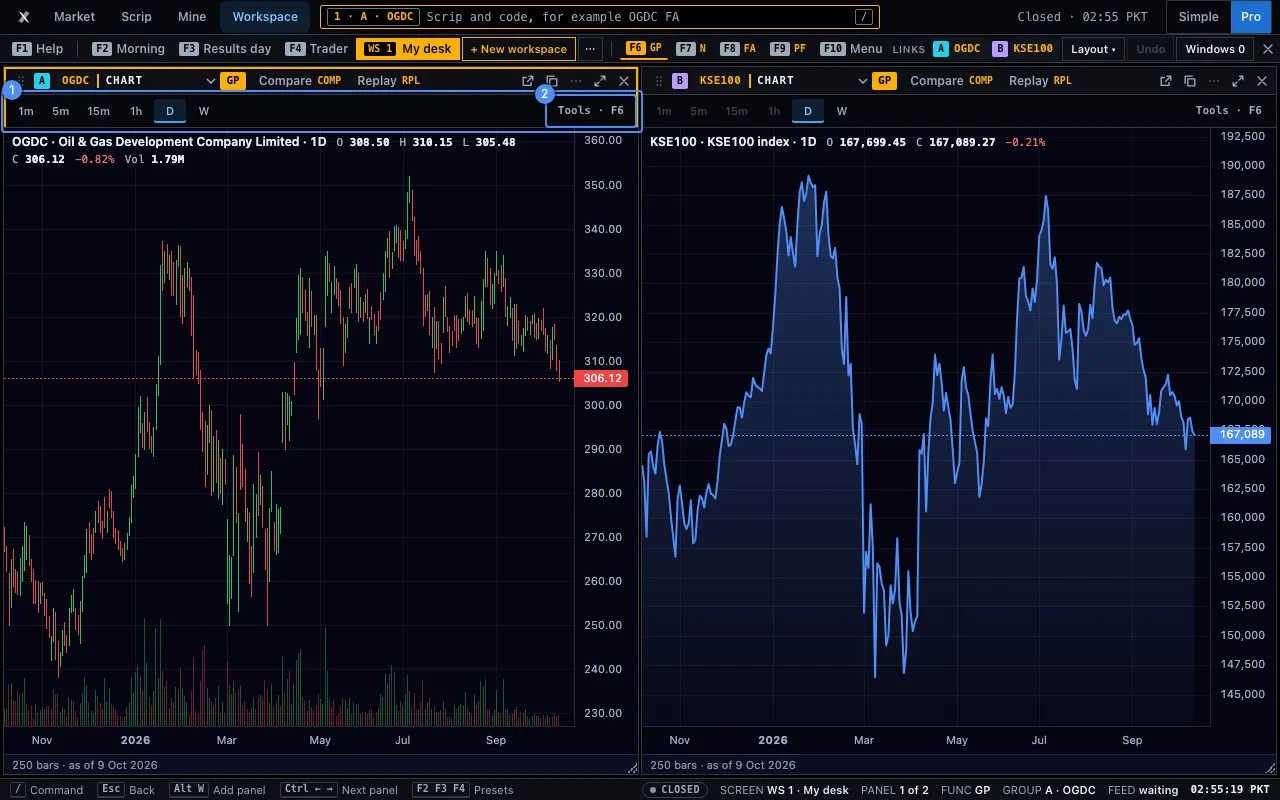
A Chart panel is the chart itself in a frame of the tool’s own page. Your drawings, lists and alerts are the same ones, because it is the same device.
- From 1440 px wide, the first two Chart panels of 440 × 480 px or more are the full chart: Pro’s tools, indicators, Compare, Alerts, Replay and Events.
- The other Chart panels are the light chart: six intervals 1 — 1m, 5m, 15m, 1h, D and W, kept per panel, D by default — and a Tools · F6 button 2.
- An index has no intraday bars, so its panel draws D.
- F6, Tools · F6 or Maximise opens the full chart page with the same scrip, interval and range. Restore, or Alt+W there, returns to the Workspace with this chart as panel 1.
- A line you drew is there after Maximise and after Restore.
On a chart panel the foot shows its keys: I indicators, C compare, A alert, R replay.
A chart panel never covers its last bar. The tools sit beside the chart, not over it.