The Workspace
The Workspace is your own desk: panels side by side, each showing one scrip and one function. One command line runs all of it.
This is the first of five pages. Panels and layouts covers the panels themselves. Panel kinds says what each one shows. Codes and keys lists every code and key. Phone, Urdu and privacy covers the rest.
The Workspace shows facts from the exchange and the record. It gives no advice and no forecast. It keeps your arrangement on this device only.
Open the Workspace
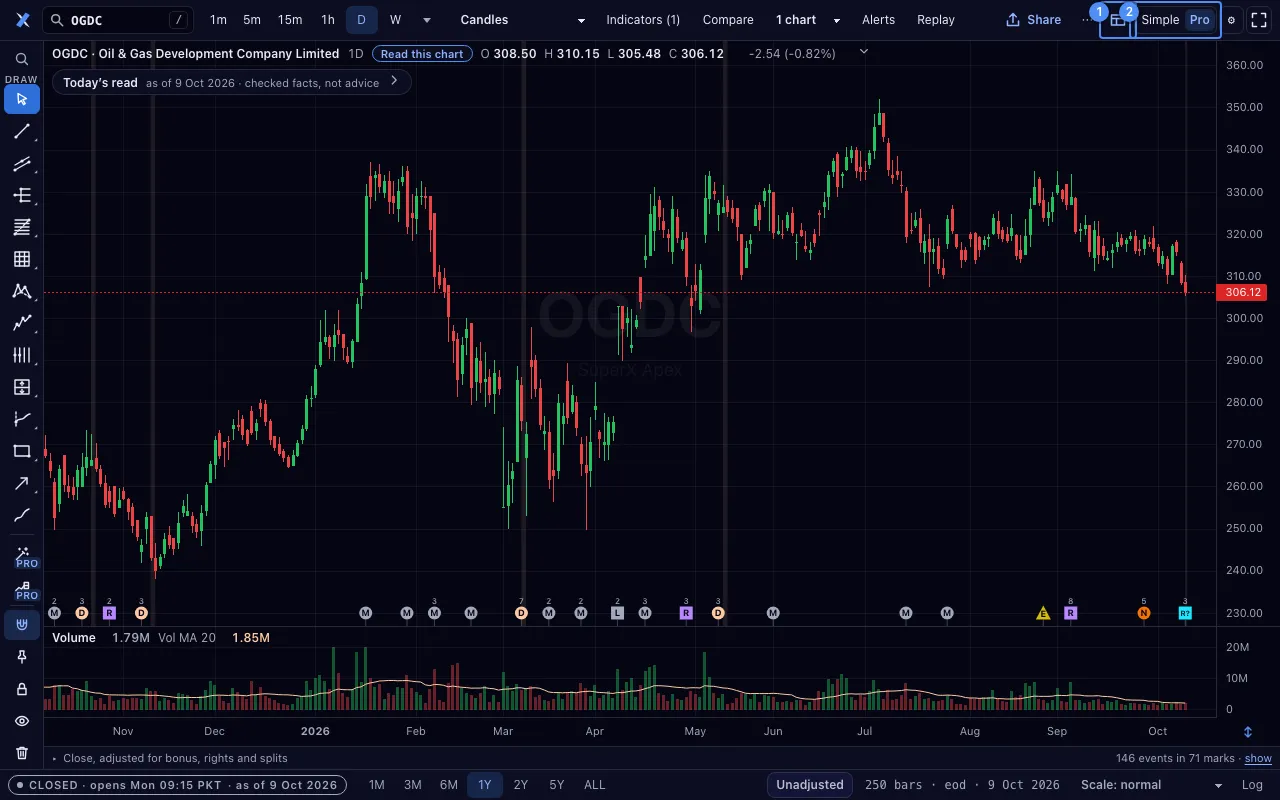
The Workspace is the Terminal in the top bar, next to the chart. It opens in Pro. It is a lazy part of the tool: Simple’s first load does not carry it.
- On a chart in Pro, press Terminal 1 in the top bar, or press Alt+O. On a Mac, Alt is ⌥.
- Or type
WSin the command line, or open the addresshttps://superx.pk/terminal/#go=WS. - Press Esc or the close button to leave. Esc first closes an open box, then restores a maximised panel, then leaves.
The Terminal button shows from 1024 px wide. Under 1440 px it is its icon, so the top bar keeps its other controls. From 1440 px it shows its name. On a narrower screen use Alt+O or the WS code.
The dark Terminal look
The Workspace opens in the Terminal look: a dark desk with amber function codes, on every device and width, a phone too. A light theme you chose, or a link with th=light, stays as it is. Settings has a switch for the look. The look ends when you leave the page, unless Settings keeps it.
What the address holds
The address is #go=WS and nothing else. A link never carries a panel, a scrip, a list, an alert or a holding. Your arrangement lives on this device. A link you send opens your friend’s own Workspace.
First visit
Three short hints show once each, in the Terminal look: type a scrip then a code; the letter on a panel head is its link group; F10 lists every function. Skip ends them. They never show on a #s= chart link.
The Simple | Pro switch is at the end of the Workspace’s top row. Pro is where the Workspace is. Simple leaves for the light chart. Full screen never changes the mode.
The command line, and where Enter sends it
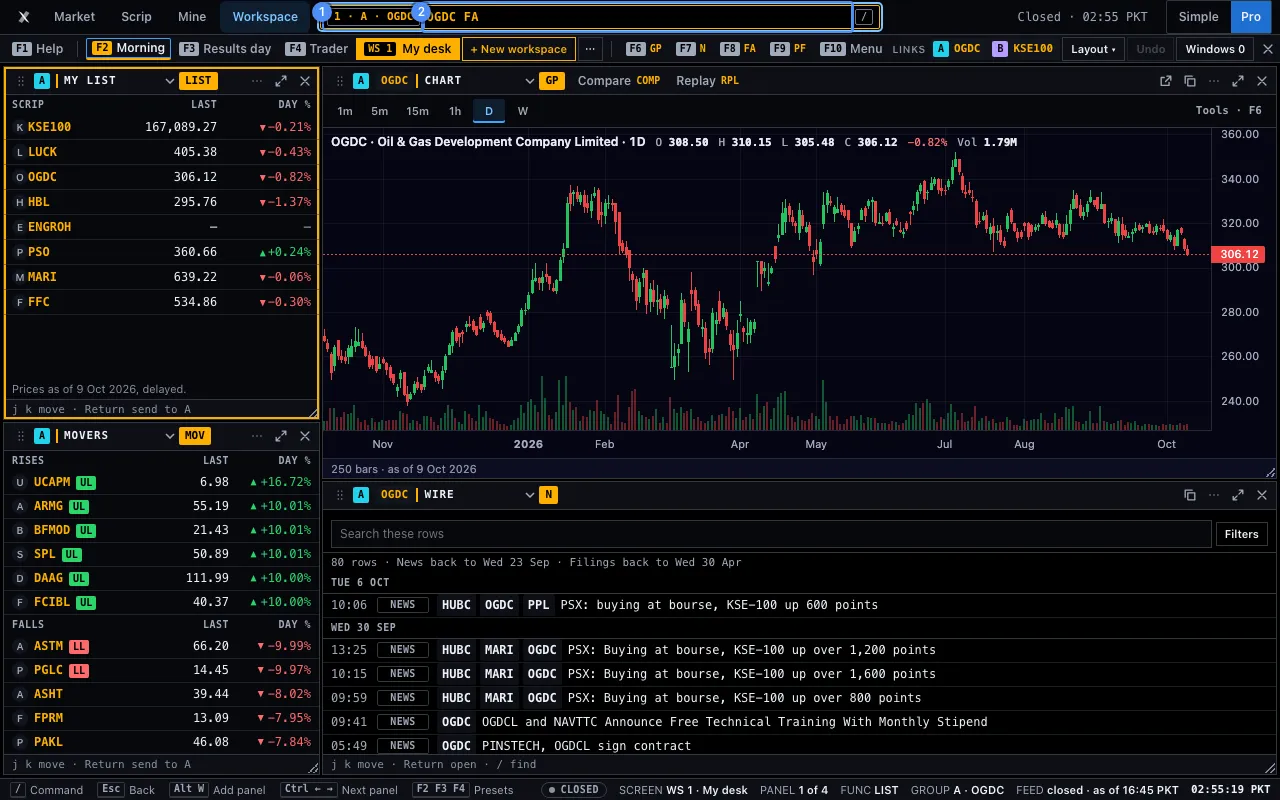
One command line sits in the top row, after the places. Press / from any panel, or from inside a chart panel, and type. A line is SCRIP CODE, such as OGDC FA. The order may be reversed. Tab completes the code.
The chip 1 at the line’s start says where the line goes: the panel number, its link group and its scrip, such as 3 · A · OGDC.
| Press | What the line does |
|---|---|
| Enter | Loads the focused panel. A scrip alone moves the focused panel’s link group. |
| Shift+Enter | Adds a tab to the focused panel (6 at most). |
| Alt+Enter | Opens a new panel beside the focused one. |
| Ctrl+Enter | Opens a window of its own, in the focused panel’s link group. On a Mac, ⌘ does the same. |
| Esc | Clears the line and leaves it. |
A code typed alone keeps the scrip of the focused panel: FA loads its statements. RISK alone is the risk page of the whole book. OGDC RISK is My holding in that scrip. A wrong code gets the nearest code in reply.
The last ten lines stay on this device and are never sent. ↑ on an empty line walks them. See Codes and keys for every code.
Help: HELP and F1
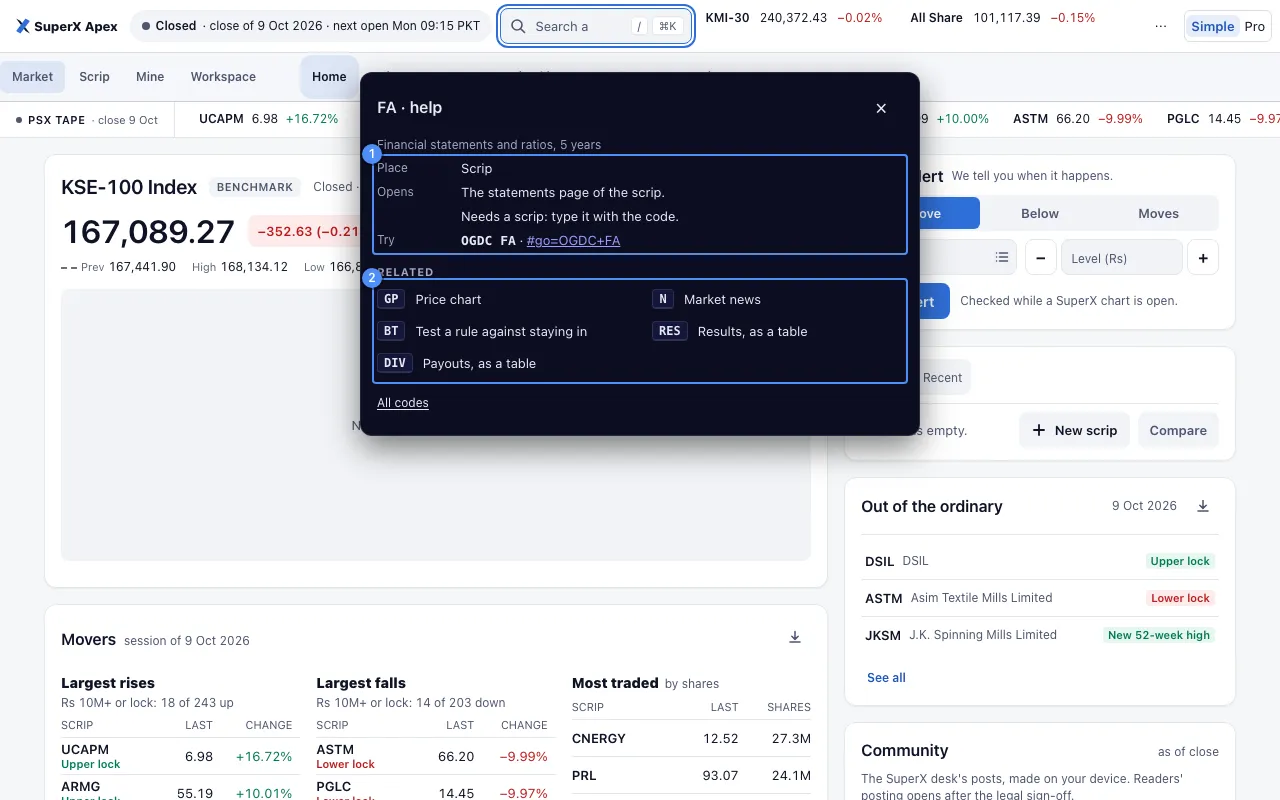
Type HELP or ? to see every code, grouped by place. Type HELP FA for one code. The address #go=HELP+FA opens the same card, so you can send it.
Press F1 in the Workspace to see the help of the focused panel’s function. A card says what the code means, its place, what it opens, whether it needs a scrip, an example line to try, and its related codes. Press a related code to read its card. All codes returns to the list.
The panel’s ⋯ menu has the same: Help for this function, with its code. Esc closes the card and the Workspace stays open.
The function keys
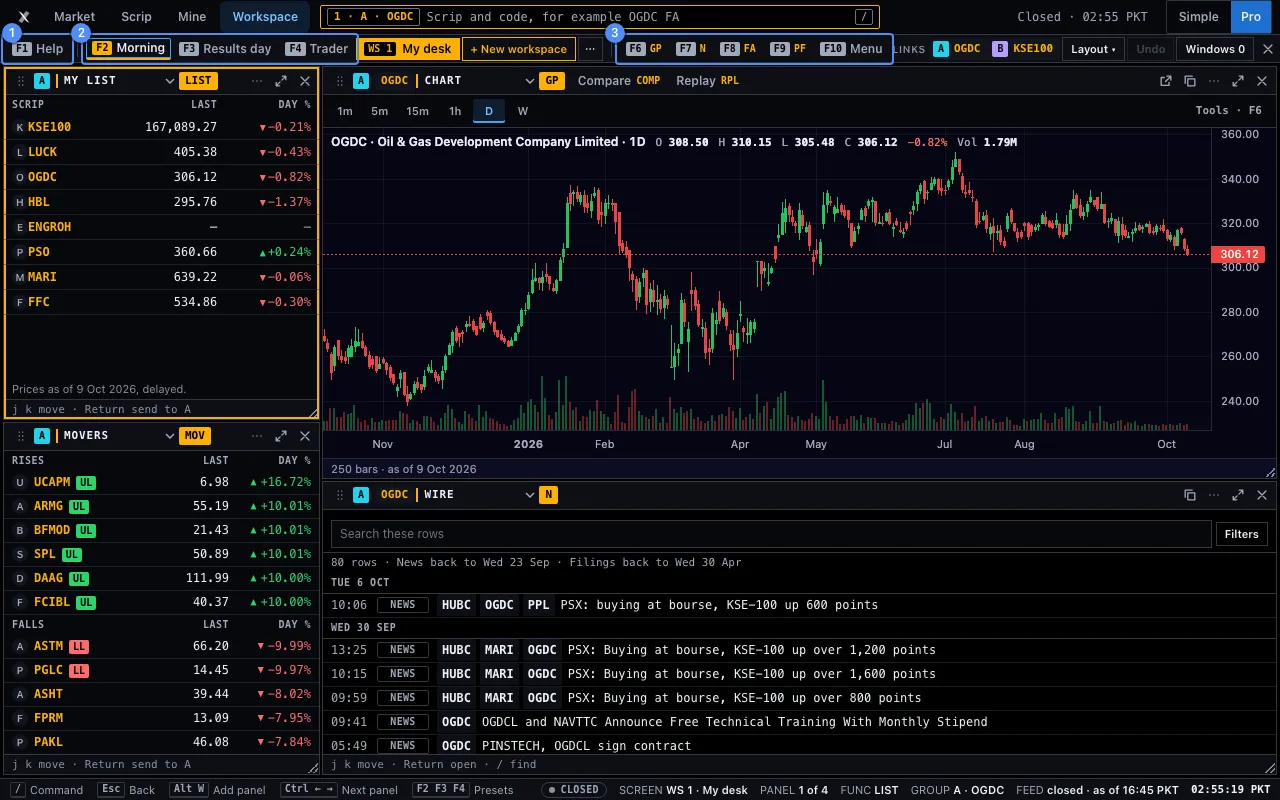
In the Terminal look a strip of ten keys heads the panels. A key acts on the focused panel. Its place never moves. Each button shows its name, its key and its code. Press the button or the key. The function keys work inside a chart panel too.
| Key | Name | Code | What it does |
|---|---|---|---|
| F1 | Help | HELP | Opens the help of the focused panel’s function. |
| F2 | Morning | Opens the Morning workspace: My list, Movers, a chart and the Wire (4 panels). It is made the first time and never replaces a desk you changed. | |
| F3 | Results day | Opens the Results day workspace: My list, a chart, Statements and the Wire (4 panels). | |
| F4 | Trader | Opens the Trader workspace: 6 panels, and 8 from 1920 px wide. Two charts watch two scrips. | |
| F5 | The browser’s | Reload. The Workspace does not take it. | |
| F6 | Chart | GP | Shows the chart in the focused panel. On a chart panel it opens the full chart page. |
| F7 | Filings | N | Shows filings and news in the focused panel. The scrip stays. |
| F8 | Statements | FA | Shows the financial statements in the focused panel. |
| F9 | Portfolio | PF | Shows the portfolio in the focused panel. |
| F10 | Menu | Lists every function for the focused panel, by place. The arrows move. Esc closes it. |
F2 to F4 act only while no field has the focus. The key of the active template is underlined. After F4 come the WS tabs and + New workspace. F11 and F12 stay the browser’s. On the right end of the strip are the Links chips, + Tile, Layout file, Layout ▾ and Windows. Panels and layouts covers each.
The status line
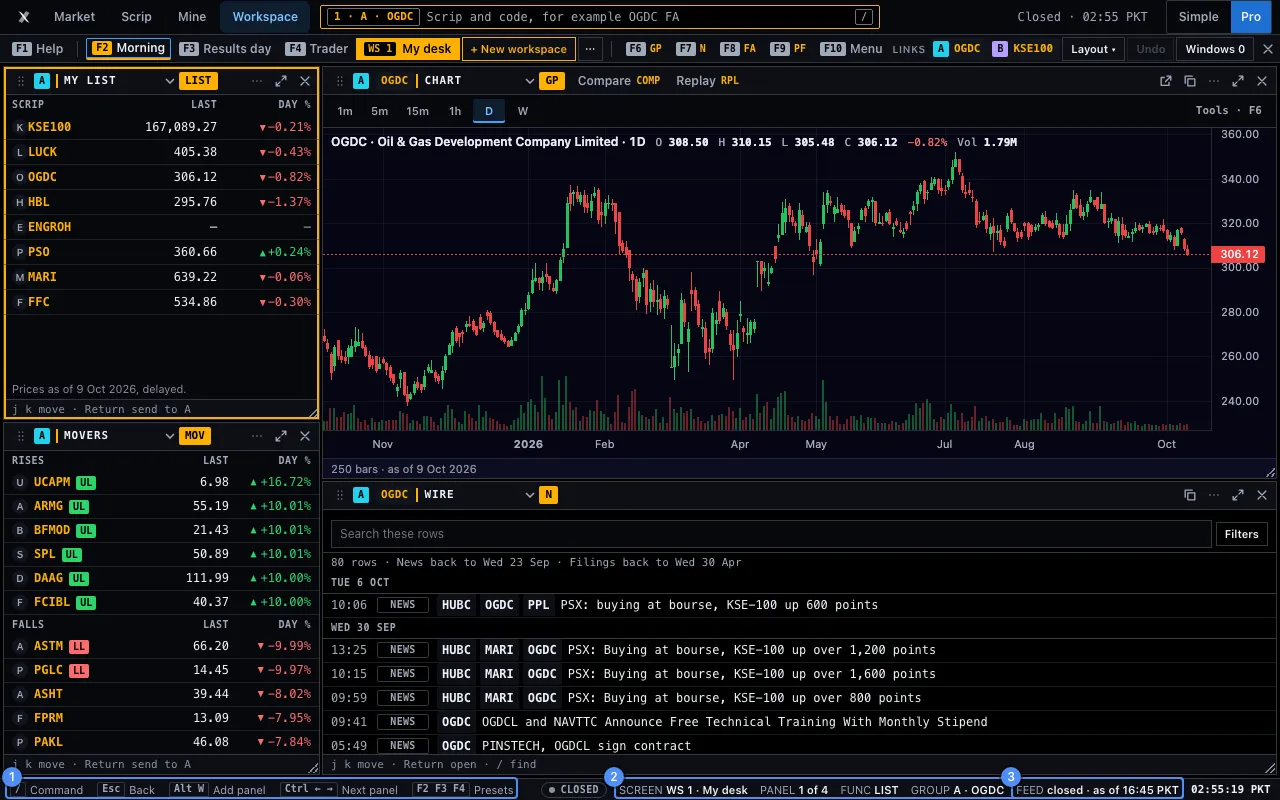
A line of 22 px under the panels says what you are looking at. On the left are the keys of the desk: / Command, Esc Back, Alt+W Add panel, Ctrl with the arrows for the next panel, and F2 F3 F4 for the presets. On the right are these fields.
| Field | What it says |
|---|---|
| OPEN or CLOSED | The exchange’s session now. |
| SCREEN | The layout on screen, such as Morning, or Changed after you edit it. |
| PANEL | The focused panel’s place, such as 3 of 6. |
| FUNC | The code of the focused panel’s function, such as LIST. |
| GROUP | The focused panel’s link group and its scrip, such as A · OGDC. |
| FEED | The state of the data, in a word, with its age, such as live · as of 14:32 PKT. |
| Cadence line | How often the data refreshes, in the tool’s own words. |
| Clock | The time in Karachi (PKT). |
The FEED field always says a word, never a colour alone. live: the board answers and the session is open. closed: the session is closed, so the last figures stand. halted: the exchange published a market-wide halt today and the board has not moved since. offline: this device has no connection. reconnecting: a read failed after one worked, and it tries again. error: a read failed and none worked yet. waiting: the first read is not back yet.
The line never says LIVE for data that is late. A panel with its own age, such as Time and sales, says so in its own words. See Panel kinds.