Compare and multi-chart layouts
Pro shows more than one symbol at a time: on one chart, or on up to eight charts.
Compare symbols

- Click Compare or press C.
- Type a symbol and choose it. The chart holds up to five compare symbols.
- Each compare symbol draws as a percent change, on its own axis.
The × beside a symbol in the panel removes it.
The link holds the compare symbols, for example cmp=PPL,MARI.
Two to eight charts

- Choose Charts on screen in the top bar: 1, 2, 3, 4, 6 or 8 charts.
- Each chart has its own symbol, interval and type.
A phone shows two charts and says so.
Charts in step
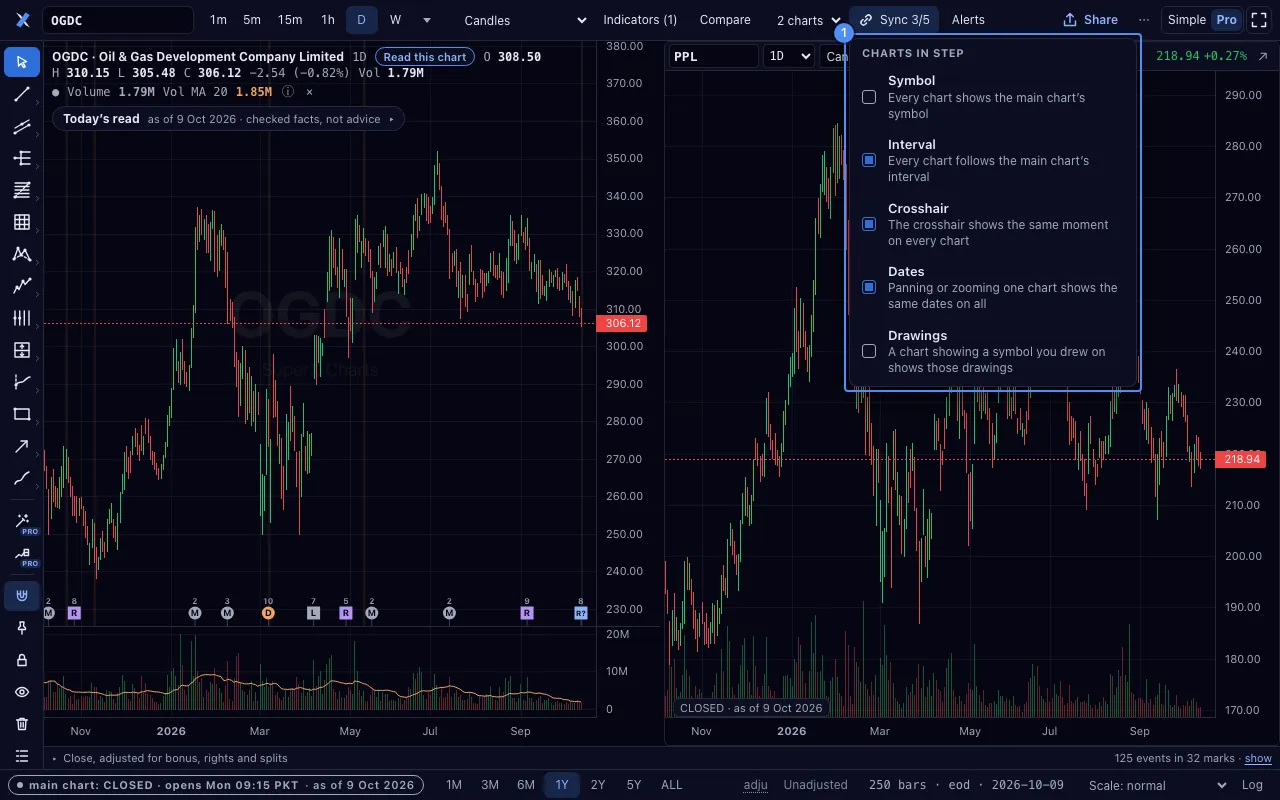
With two or more charts, Sync links them.
- Symbol: one symbol on every chart.
- Interval: one interval on every chart.
- Crosshair: the crosshair moves on every chart.
- Dates: the charts scroll and zoom together.
- Drawings: a drawing shows on every chart of its symbol.
At first, the interval, the crosshair and the dates are in step.
Save a layout

- Open Layouts in the ⋯ menu.
- Name the layout and save it 1.
- Choose it later from the same menu.
A layout stores the charts, their indicators and their layers.
Your work as one file 2 saves your layouts, drawings and watchlist in one file. Its import reads the file back and asks before it replaces anything.
The watchlist

- Press W, or choose Watchlist in the ⋯ menu.
- Type a symbol in its box to put it on the list.
- Click a row to open its chart.
- ↑ and ↓ step through the list. Each symbol opens in the main chart.
- Named sections group the symbols. Flags show KMI, KSE-100, KSE-30 and KMI-30 members.
- When the market is closed, each row shows the last close and its date.
The tape shows the list in one row under the top bar. It is in Settings, and off at first.