Coming from another charting tool?
Many keys and names in SuperX Charts are the ones other charting tools use. This page maps one to the other.
The same keys

These keys do the same thing in both tools.
| Other tools | SuperX Charts | Key |
|---|---|---|
| Trend Line | Trend line | Alt+T |
| Horizontal Line | Horizontal line | Alt+H |
| Horizontal Ray | Horizontal ray | Alt+J |
| Vertical Line | Vertical line | Alt+V |
| Fib Retracement | Fibonacci retracement | Alt+F |
| Hide all drawings | Hide all drawings | Ctrl+Alt+H |
| Quick search | Command palette | Ctrl+K |
| Undo | Undo | Ctrl+Z |
| Redo | Redo | Ctrl+Y |
| Remove the selected drawing | Remove the selected drawing | Del |
| Cancel the drawing tool | Cancel the tool | Esc |
Here too, a symbol typed on the chart opens the symbol search, and a number opens the interval box.
Where each feature is
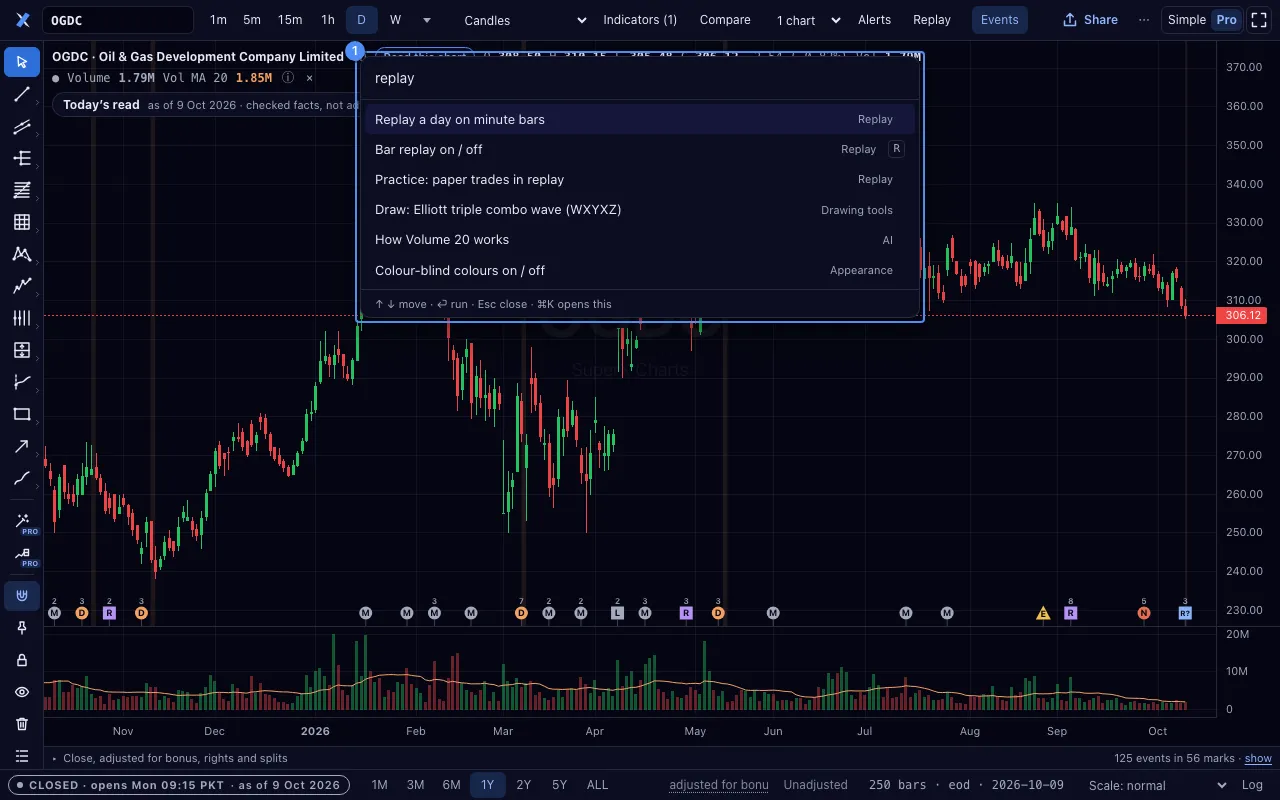
A feature of another charting tool, and its place in SuperX Charts. Ctrl+K, or Find a tool or command… in the ⋯ menu, finds any of them by name.
| Other tools | SuperX Charts |
|---|---|
| Bar Replay | Replay in the Pro top bar, or R |
| Paper Trading | Practice, inside bar replay, with illustrative costs and no real money |
| Object Tree | Object tree on the drawing rail |
| Magnet Mode | Magnet on the drawing rail: weak or strong |
| Stay in Drawing Mode | Drawing mode stays on, on the drawing rail |
| Lock All Drawings | The lock button on the drawing rail |
| Remove Drawings | Remove all drawings on the drawing rail, with a second press |
| Indicators | Indicators in the Pro top bar, or I |
| Pine Script | The Formula editor in the Indicators panel, with a small language of its own |
| Compare Symbol | Compare in the Pro top bar, or C |
| Multi-chart Layout | Charts on screen in the Pro top bar: 1, 2, 3, 4, 6 or 8 charts |
| Watchlist | Watchlist in the ⋯ menu, or W |
| Alerts | Alerts in the Pro top bar, or A |
| Take a Snapshot | Save PNG in the ⋯ menu, or S; Share for a card and a link |
| Fullscreen Mode | Full screen, or F |
| Chart Settings | Settings and colours… in the ⋯ menu |
| Log Scale | Log in the status bar, or L |
| Volume Profile | Fixed range volume profile and Anchored volume profile in the Volume family |
| Anchored VWAP | Anchored VWAP in the Volume family |
| Long Position, Short Position | The Measure and forecast family on the drawing rail |
What works differently
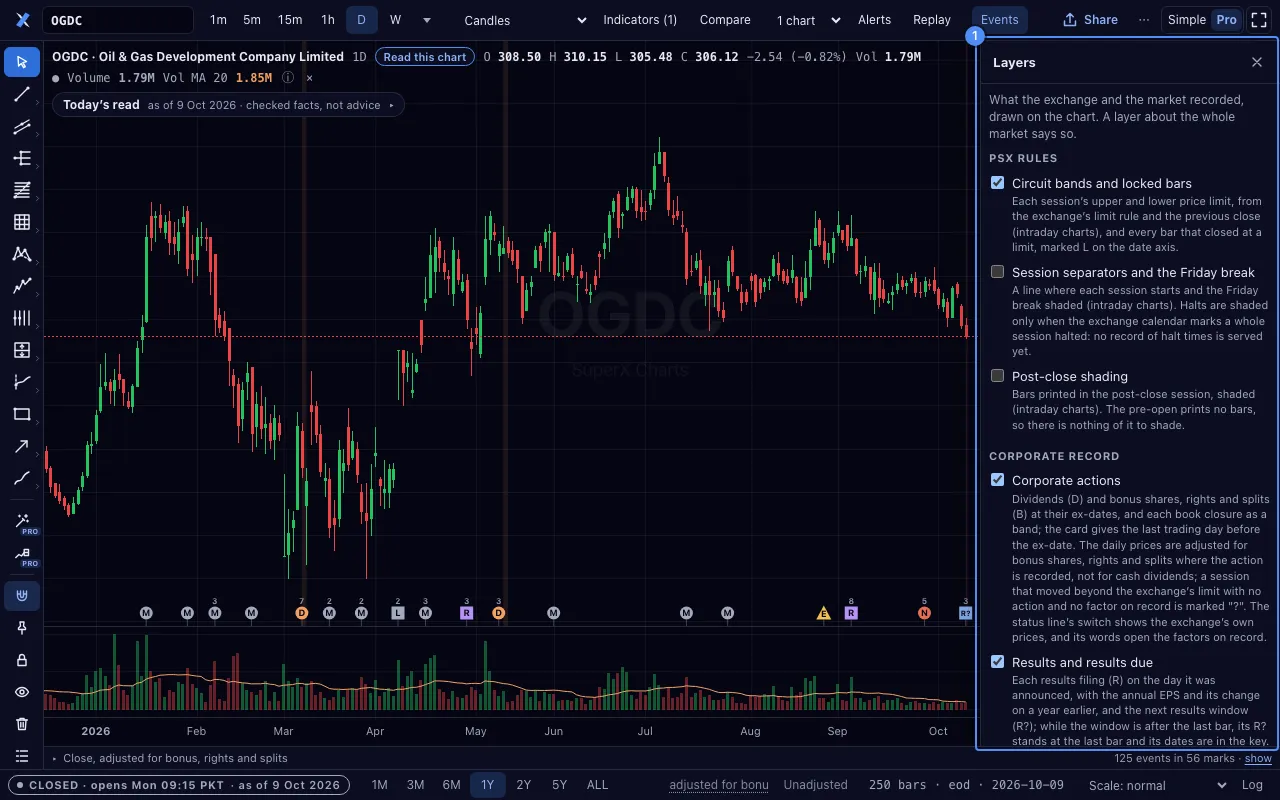
- Some single letters are shortcuts here: F, L, T, E, I, C, S, R, X, A, W and Y. For a symbol that begins with one of them, type the whole word, or press / first.
- There are no accounts. Drawings, alerts and layouts are on your device. Your work as one file moves them.
- Formulas have a small language of their own. Pine scripts do not run here.
- The tool has no trading buttons and links to no broker. Practice uses paper trades only.
- The chart knows the PSX’s own rules: price limits, sessions, the Friday break, corporate actions and halts.
Simple and Pro
SuperX Charts has two modes. Pro is on for everyone: all intervals and chart types, 90 indicators, 72 drawing tools, the panels and the data layers.
Simple is the calm view: one chart, five ranges, candles or a line, four indicator presets, the events and Share.
- Press the Simple | Pro switch in the top bar to choose the mode. This device keeps your choice.
- On a phone, the switch is the first row of the ⋯ menu.
- The tools never need full screen. Full screen, or F, only changes the window.
- Your drawings stay on the chart when you choose Simple.