Getting started
This page covers the chart itself: the symbol, the range, the chart type, the legend, the events and the market badge. Its pictures show Simple, the calm view.
Open your first chart

- Click the symbol box 1 at the top left. On a phone, tap it.
- Type a symbol, for example OGDC, or a part of the company name.
- Press Enter to open the first match. A click on a row also opens it.
- The chart opens on daily bars over one year.
- The legend 2 shows the last bar: its open, high, low and close, and its change on the day.
On the chart, press / to go to the symbol box.
Every view is a link. The address holds the symbol, the range and the type, so a copied address opens the same chart.
Pick a range

Simple has five ranges: 1M, 6M, 1Y, 5Y and ALL. A daily chart opens on 1Y. With data saver on, it opens on 6M.
- Click a range chip 1. The lit chip is the range on the screen.
- On a phone, the chips are under the chart, in the status bar.
- Drag the chart for earlier bars. Scroll, or pinch on a phone, to zoom.
- Double-click the price axis or the time axis to reset the view.
Daily bars go back to 2016. Minute bars begin on 31 Aug 2026. When an interval holds less history than a range, the chart says so.
Candles or a line

- Click Candles or Line 1 in the top bar.
A candle shows the open, the high, the low and the close of one bar. A green candle closed above its open. A red candle closed below it.
Colour-blind colours in the ⋯ menu draws up in blue and down in orange.
On an index, the chart draws candles only where the exchange’s record has a high and a low. Elsewhere it draws a line.
Pro has 19 chart types, among them Heikin-Ashi, Renko, Kagi, line break and Point & Figure.
Read the chart
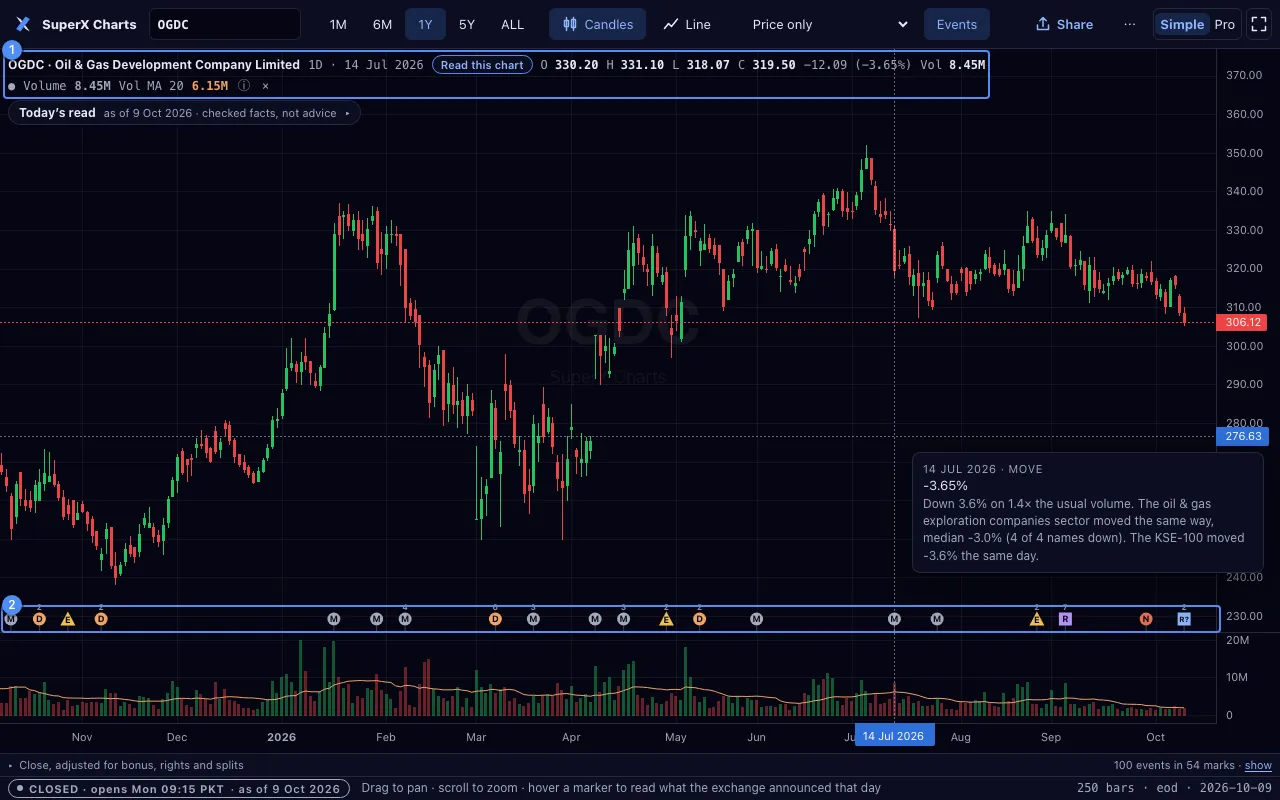
- Point at a bar. On a phone, long-press it.
- The legend 1 shows that bar’s date and prices.
- The marks along the date axis 2 are the exchange’s events: dividends, book closures, results, notices and large moves.
- Point at a mark, or tap it, to open its card. Each card names its source and its date.
Daily prices are adjusted for bonus shares, rights and splits. They are not adjusted for cash dividends. The key under the chart says so.
What happened

- Click What happened, or press Y. When the top bar has no room for it, it is in the ⋯ menu 1.
- The list 2 shows the exchange’s record for this symbol, each event with its date.
- Click What happened again to close it.
The number beside What happened is the number of events on the chart.
Events in the top bar shows or hides the marks. E does the same.
Simple and Pro

SuperX Charts has two modes. Pro is on for everyone: all intervals and chart types, 90 indicators, 72 drawing tools, the panels and the data layers.
Simple is the calm view: one chart, five ranges, candles or a line, four indicator presets, the events and Share.
- Press the Simple | Pro switch in the top bar to choose the mode. This device keeps your choice.
- On a phone, the switch is the first row of the ⋯ menu.
- The tools never need full screen. Full screen, or F, only changes the window.
- Your drawings stay on the chart when you choose Simple.
The market badge
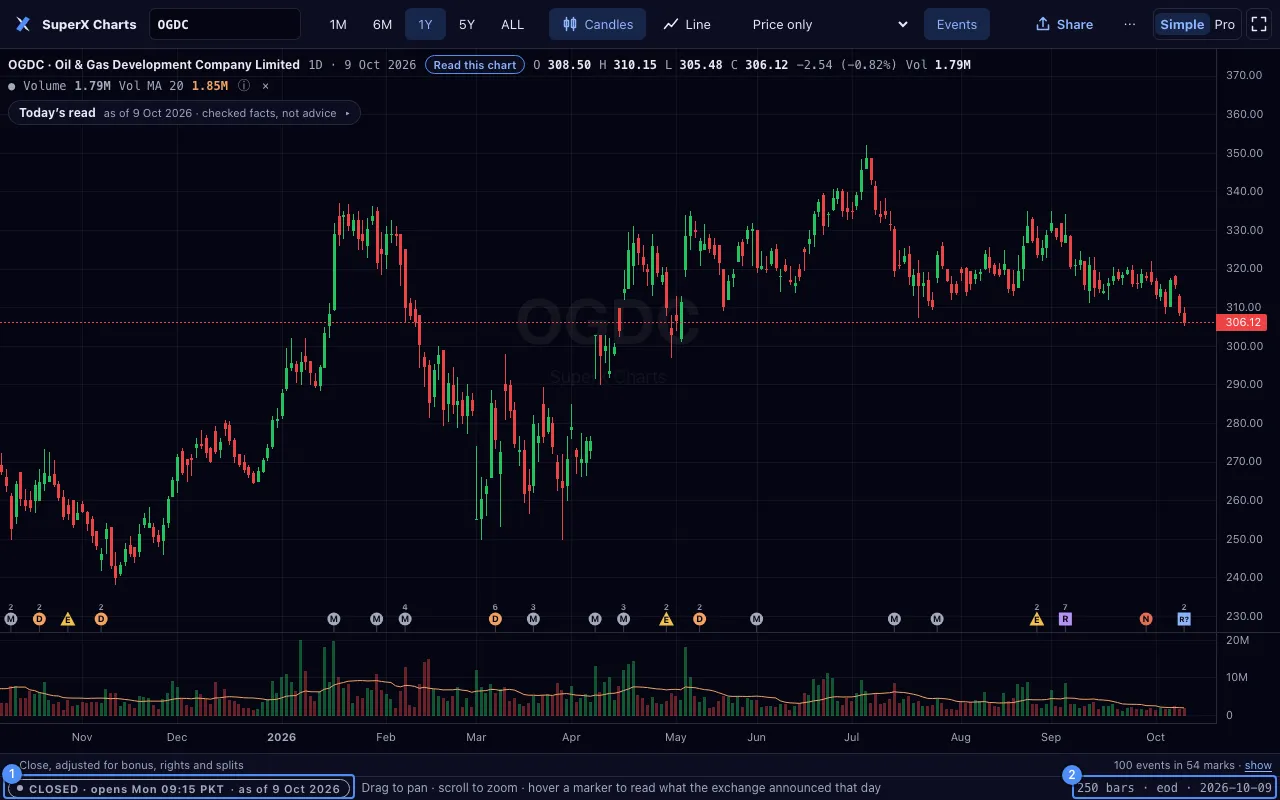
The badge 1 at the bottom left says how fresh the prices are. It also gives the time of the newest bar.
| Badge | What it means |
|---|---|
| LIVE | The market is open, the last update was answered and the prices move. |
| STALE | The market is open, but nothing on the chart has changed for a while. |
| RECONNECTING | An update failed. The chart shows what it had and invents nothing. |
| DELAYED | This chart is not refreshed while it is open, as on an index. Reload for the latest. |
| CLOSED | The market is closed. The chart shows the last session. |
| HALTED | The exchange’s calendar marks this session as halted. |
| REPLAY | Bar replay is on. Nothing after the replay’s bar shows. |
The status line 2 counts the bars on the chart.
For a symbol that does not exist, the chart says “No symbol called X was found” and offers the search.