Drawing
Pro has 72 drawing tools in 13 families. Each point of a drawing is a time and a price. So a drawing stays on its bars when the interval changes.
Pick a tool

- Click a family button on the rail. It arms the tool you last used in that family.
- For the whole family, click the small arrow beside the button, or right-click the button 1.
- Click a tool’s star 2 to show it in the favourites bar over the chart.
- Or press the tool’s key, for example Alt+T for a trend line.
On a phone, tap the drawing button, then a family, then a tool.
A tool’s tooltip gives its name and its key. A tool with no key of its own is in the command palette: press Ctrl+K and type its name.
Place a drawing

- Arm a tool 1. The hint line under the chart says how to place it.
- Click each point on the chart. Most lines need two clicks.
- The readout 2 beside the pointer shows the change while you move.
- Press Esc to cancel the tool.
Magnet
The magnet snaps a point to the open, high, low or close of a bar. Weak snaps within 12 pixels. Strong always snaps. Click Magnet to change it.
Drawing mode stays on
A tool is put down after one drawing. With Drawing mode stays on, it stays armed for the next one. A double-click on a family button does the same for one tool.
The 13 families
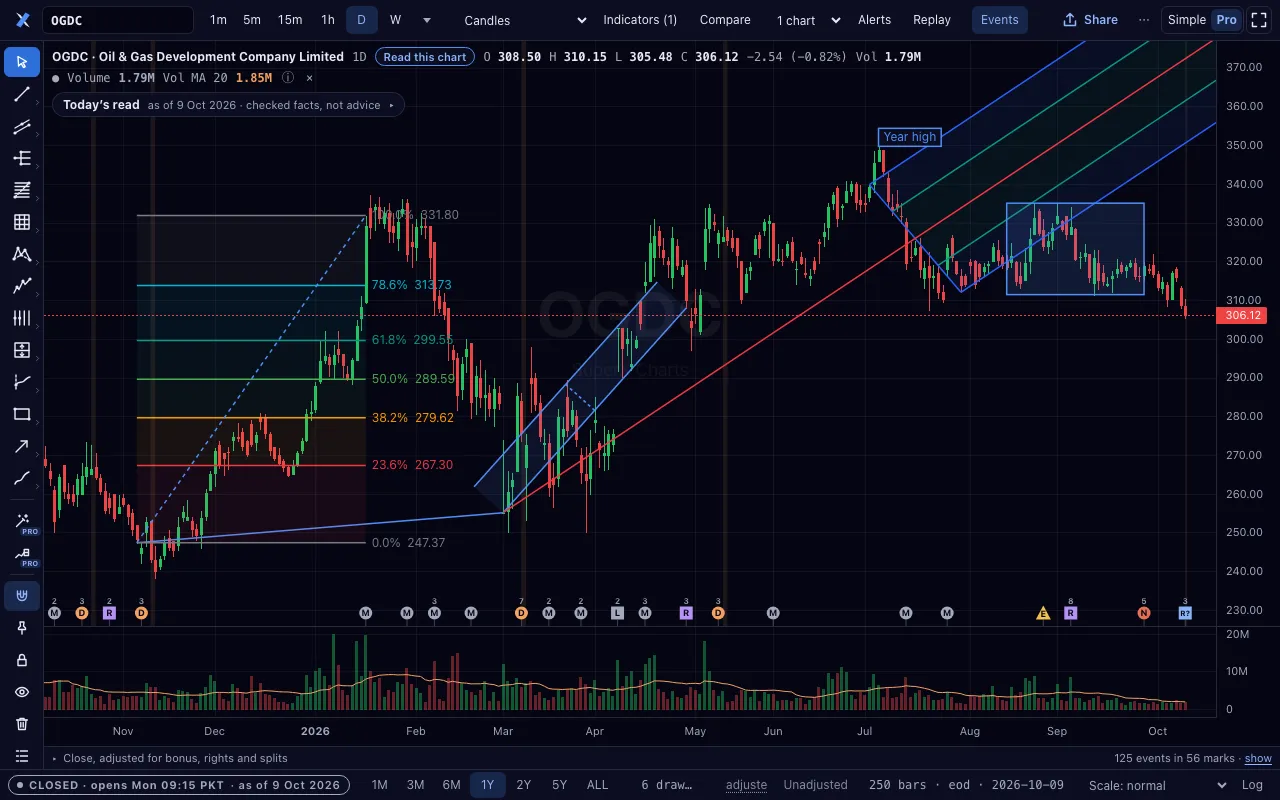
Each family and its tools. A key in brackets is the tool’s own shortcut.
| Family | Tools |
|---|---|
| Lines | Trend line (Alt+T), Ray (Alt+R), Extended line (Alt+E), Horizontal line (Alt+H), Horizontal ray (Alt+J), Vertical line (Alt+V), Info line, Trend angle, Cross line |
| Channels | Parallel channel (Alt+C), Regression trend, Flat top/bottom, Disjoint channel |
| Pitchforks | Pitchfork, Schiff pitchfork, Modified Schiff pitchfork, Inside pitchfork |
| Fibonacci | Fibonacci retracement (Alt+F), Fibonacci extension (Alt+G), Fib channel, Fib time zone, Fib speed resistance fan, Fib circles, Fib spiral, Fib speed resistance arcs, Fib wedge |
| Gann | Gann box, Gann square fixed, Gann fan |
| Patterns | XABCD pattern, Cypher pattern, Head and shoulders, ABCD pattern, Triangle pattern, Three drives pattern |
| Elliott waves | Elliott impulse wave (12345), Elliott correction wave (ABC), Elliott triangle wave (ABCDE), Elliott double combo wave (WXY), Elliott triple combo wave (WXYXZ), Elliott diagonal (12345) |
| Cycles | Cyclic lines, Time cycles, Sine line |
| Measure and forecast | Long / short position (Alt+L), Measure (Alt+M), Long position, Short position, Forecast, Price range, Date range, Date and price range |
| Volume | Anchored VWAP, Fixed range volume profile, Anchored volume profile |
| Shapes | Rectangle (Alt+B), Rotated rectangle, Path, Ellipse, Polyline, Triangle, Arc, Curve, Highlighter |
| Text and notes | Arrow (Alt+A), Text (Alt+X), Note, Callout, Price label, Signpost, Flag mark |
| Brush | Brush (Alt+P) |
Select, move and edit

- Click a drawing to select it. Its handles appear.
- Drag a handle to move one point. Drag the drawing itself to move all of it.
- Press the arrow keys to nudge a selected drawing.
- The bar over a selected drawing 1 sets its colour and style, clones it, locks it, hides it or deletes it.
- Click Settings for every setting: Style, Text, Inputs, Coordinates and Visibility.
Templates
Save as template stores a look under a name. Save as default gives every new drawing of that tool the same look.
Ctrl+Z undoes a change. Ctrl+Y redoes it.
Delete one drawing, or remove all drawings

One drawing
- Select it and press Del or Backspace.
- Or click Delete in the bar over it.
- Or right-click it and choose Remove.
- Or click its delete button in the Object tree.
All drawings on the symbol
- Click Remove all drawings 1 on the rail: the bin.
- The status line 2 asks for a second press. It names the number of drawings and the symbol.
- Press the button again within four seconds. Every drawing on this symbol goes.
The command palette has the same command: press Ctrl+K and type “remove all”. The chart’s right-click menu has it too.
Ctrl+Z brings the drawings back.
Hide, lock and order

- Hide all drawings 2, or Ctrl+Alt+H, hides every drawing. Press it again to show them.
- The lock button fixes every drawing in place. Press it again to free them.
- The Object tree 1 lists the drawings, topmost first. Each row selects, shows or hides, locks or deletes its drawing.
- In the tree, Alt+↑ and Alt+↓ move a drawing up or down the order.
A hidden or locked drawing is still saved.
Auto draw, and Targets & forecasts

Two sections at the end of the rail draw for you, on request only. Nothing is drawn when a chart opens.
Auto draw
- Support & resistance: horizontal levels where the price turned several times.
- Trend lines & channels: lines through swing points that no close crossed.
- Fibonacci on the last swing: a retracement on the last complete swing.
- Chart patterns: double tops and bottoms, head and shoulders, and triangles, each with its PSX record.
- Suggested Elliott count: a count that passes the wave rules, with its confidence.
Targets & forecasts
- Measured-move target: the textbook level of the latest completed shape in view.
- Forecast range: a cone from the last bar, built from the share’s past windows.
- Stop and target box: a stop and a level on a selected position drawing.
Each tool draws only where the evidence passes its tests: enough past cases, and a held-out rate clearly above the share’s own baseline. Otherwise it says “Not enough evidence — nothing drawn” and gives the reasons.
Each drawing carries its evidence and this line: “An automatic drawing from past prices — not financial advice.”
An automatic drawing is labelled. An edit makes it your own drawing. Clear auto drawings removes the ones you did not edit.
Each of these tools has a small Pro pill: free today, part of Pro later.