The Pro tools
Pro holds every tool of SuperX Charts, and it is on for everyone. Every tool is free today.
Simple and Pro
SuperX Charts has two modes. Pro is on for everyone: all intervals and chart types, 90 indicators, 72 drawing tools, the panels and the data layers.
Simple is the calm view: one chart, five ranges, candles or a line, four indicator presets, the events and Share.
- Press the Simple | Pro switch in the top bar to choose the mode. This device keeps your choice.
- On a phone, the switch is the first row of the ⋯ menu.
- The tools never need full screen. Full screen, or F, only changes the window.
- Your drawings stay on the chart when you choose Simple.
The top bar

- 1 Interval: your favourite intervals, and every interval in its menu.
- 2 Chart type: the 19 chart types.
- 3 Indicators opens the catalogue. Key: I.
- 4 Compare draws other symbols on the chart. Key: C.
- 5 Charts on screen: one to eight charts.
- 6 Alerts opens the alerts panel. Key: A.
- 7 Replay plays the history forward from a date. Key: R.
- 8 Share makes a card and a link.
- 9 ⋯ holds Find a tool or command…, the theme, colours, exports, layouts, the language and the keys. It also lists each control the bar has no room for.
- (10) Simple | Pro chooses the mode. F or Full screen beside it only changes the window.
The ranges, the price scale and Log are in the status bar under the chart.
The drawing rail

- 1 13 families of drawing tools, 72 tools in all. Each button shows the tool you last used in its family.
- 2 Auto draw and Targets & forecasts: drawings that SuperX makes on request.
- 3 Magnet, Drawing mode stays on, lock, hide, Remove all drawings, the Object tree, undo and redo.
On a phone, the tools open in a sheet from the bottom of the screen.
Drawing explains each tool.
The command palette

- Press Ctrl+K. On a Mac, press ⌘K.
- Type a few letters, for example “fib”, “log” or “replay”.
- Press Enter to run the first match. A click on a row runs that row.
Every action of the tool is a command. The palette shows each command’s key beside it.
The search reads English words in every language.
On a phone, or without the keys, open ⋯ and choose Find a tool or command…. It opens the same palette.
Right-click menus

A right-click opens a menu for the thing under the pointer.
| Where you right-click | What the menu offers |
|---|---|
| The chart | Explain this bar, reset the view, go to the newest bar, a new alert at the price, paste a drawing, hide or remove all drawings, events, indicators, compare. |
| A drawing | Settings, clone, copy, lock, hide, front or back, an alert on the line, remove. |
| An indicator in the legend | Settings, explain this indicator, remove. |
| The price axis | Normal, log, percent or indexed scale; fit the prices. |
| The time axis | Fit all bars, go to the newest bar, zoom, scroll. |
| The legend | Search, compare, the watchlist, what happened, explanations, the link, PNG and CSV. |
Side panels

Indicators, Compare, Alerts, the Watchlist, Layers, the Pulse, Settings and the keys open as panels on the right. A panel never covers the newest bar.
- Click the panel’s button, or press its key.
- Press Esc or the × to close it.
On a phone, a panel opens as a sheet from the bottom. Only one sheet is open at a time.
In Urdu, the panels open on the left.
Intervals and scales
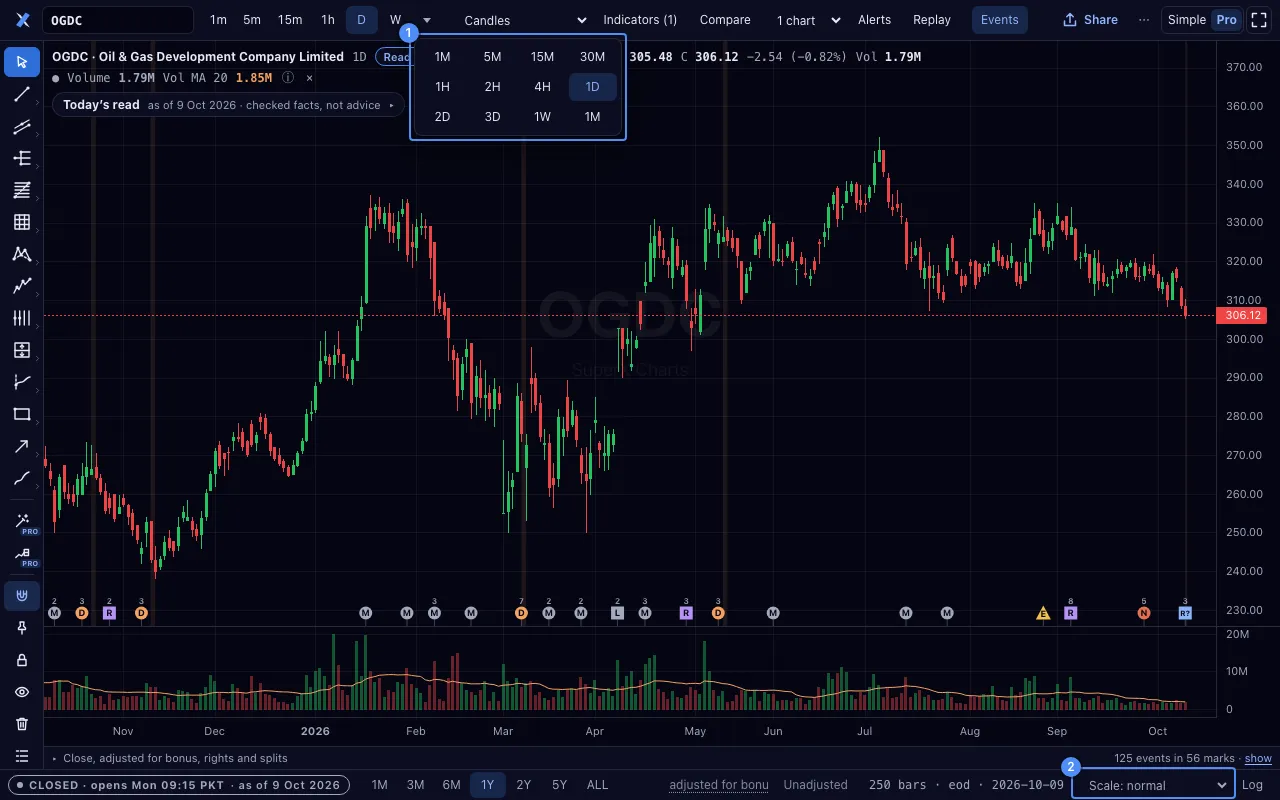
Pro has 12 intervals: 1, 5, 15 and 30 minutes; 1, 2 and 4 hours; 1, 2 and 3 days; 1 week; 1 month.
- Click the interval menu 1 and choose an interval.
- Or type it on the chart. “15” and Enter gives 15 minutes. “4h” gives 4 hours.
- Choose the price scale 2: normal, log, percent, or indexed to 100.
- Press L to turn the log scale on or off.
An index has daily bars only. Minute bars of a company begin on 31 Aug 2026.
Pro on a phone
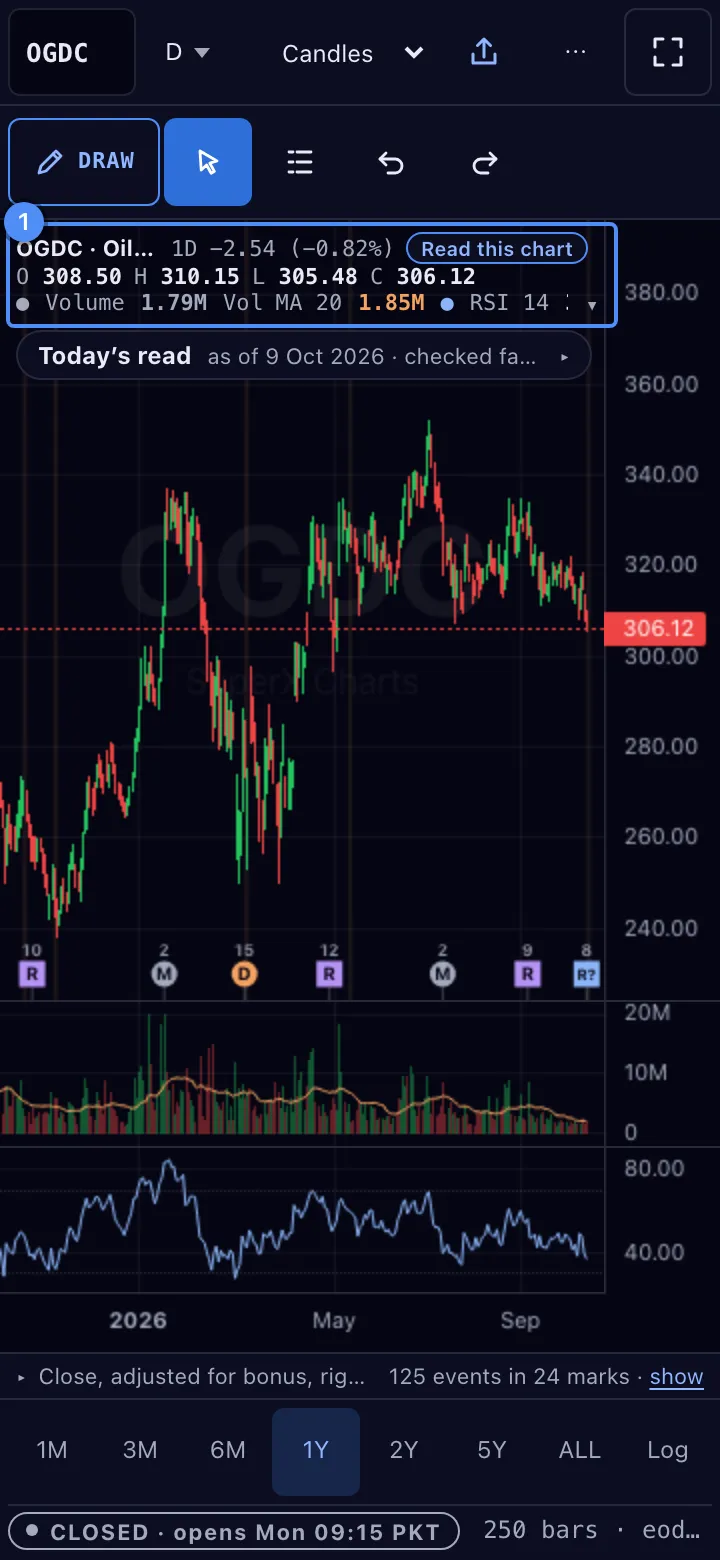
- Long-press for the crosshair and the legend.
- Drag with one finger to pan.
- Pinch with two fingers to zoom.
- Double-tap to reset the view.
- Turn the phone sideways for the chart alone.
- While you place a drawing, a loupe shows the point under your finger at twice the size.
The price pane takes at least half the screen. An indicator pane takes at most a fifth.